As an Amazon Associate, PianoMode earns from qualifying purchases. Recommendations are made on their merits; the price you pay is the same.
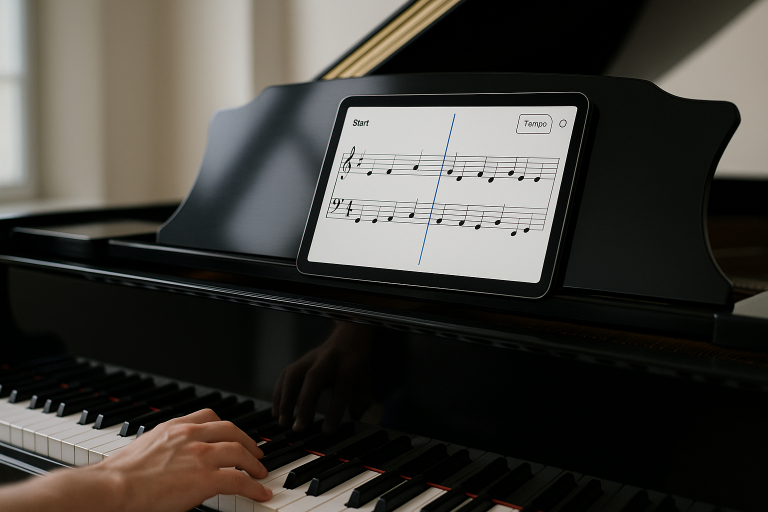
The moment of transition from the rehearsal room to the concert stage often reveals the fragile nature of musical preparation. I remember a specific performance of a Rachmaninoff concerto where my mental focus fractured not because of technical difficulty, but because of a poorly executed page turn on a humid night where the paper stuck together. For centuries, our only remedy was the “working score”, a paper document heavily burdened with graphite cues, colored pencil structural markers, and handwritten fingering solutions. However, we are currently at a technological inflection point. The traditional binder is being replaced by high-resolution tablets, and the humble pencil by the precision of active styluses and artificial intelligence. This shift is not merely a change in medium; it represents a fundamental advancement in how musical information is encoded, retrieved, and shared. By leveraging digital score annotation, we can transform our practice from a repetitive mechanical exercise into a sophisticated, data-driven cognitive process.
In this guide, you will learn the neurological advantages of digital handwriting, how to apply music theory fundamentals to your markup, and which software-hardware combinations will define your professional standard.
Digital score annotation is the systematic application of visual cues—such as fingerings, dynamic markings, and structural labels, directly onto a musical score to bridge the gap between sight-reading and reflexive performance. In the modern era, this practice is enhanced through dedicated applications like forScore, Newzik, and MobileSheets, which utilize layered metadata and cloud synchronization to manage thousands of documents instantly. Research in cognitive neuroscience confirms that handwriting these annotations with an active stylus strengthens memory retention and motor planning more effectively than typing, as the physical act of shaping symbols activates broader neural networks within the premotor and parietal cortices.
1. Why Score Annotation Matters
Cognitive and Neuroscience
The debate between handwriting and digital typing has been resolved through intensive neuroimaging research. Handwriting is a multifaceted activity involving significant cognitive effort and continuous interaction between various motor skills and cognitive processes. When a musician accurately coordinates complex hand movements to shape a specific fingering or a dynamic “hairpin” (crescendo/decrescendo), they generate spatiotemporal patterns from visual and proprioceptive information.
In contrast, typing or simple digital clicking relies on repetitive keystrokes that provide limited sensory feedback, resulting in shallower information processing. For the musician, this means that a digital score annotated with an active stylus (like the Apple Pencil Pro) is a more powerful memory tool than a “clean” score or one annotated with standard text boxes. The tactile, kinesthetic feedback of handwriting strengthens the brain’s ability to encode technical solutions into the hippocampus and cerebellum, which are essential for long-term memory consolidation and fine motor coordination.
So, marking a score with pencil is nothing new – it’s practically sacred to many musicians. Writing fingerings, emphasizing a melody line, or noting a breathing mark personalizes the music and directs focus. Pedagogues note that writing notes on the page engages the learner: having students use colored pencils or ink to highlight details actually increases their likelihood of remembering them later. Piano educator Melanie Spanswick points out that scores with personal markings become “priceless commodities” – the fingerings, dynamics and phrasing annotations aren’t strictly necessary, but they “really aid quick, easy study”. When teachers write reminders directly in the music, students “never forget what work needs to be done for the next lesson”. In short, actively marking a score turns passive reading into a mental action. By highlighting weak spots and encoding interpretive ideas on paper, musicians build muscle and auditory memory. This embodied learning is supported by educational research: handwriting activates sensory, visual and motor areas of the brain in ways that strengthen memory and understanding. In practice, an annotated score guides your eyes and fingers on stage, freeing you to focus on expression.
Traditional vs. Digital Annotation
Paper scores have long been prized for their simplicity and feel: they lie flat on a stand, need no batteries, and give a satisfying tactile feedback. As Ogden Piano Gallery notes, a sheet of paper “stays on your music stand, allowing effortless glances” and won’t cause screen glare or eye strain. There’s also no tech to learn or fail; handwritten marks on physical pages never run out of power. However, paper has limitations. Flipping through hundreds of pages, searching for a passage buried in a binder, or sharing annotations between bandmates can be tedious.
Digital scores on tablets or laptops bring clear advantages for modern practice. A tablet can hold an entire library of music (equivalent to hundreds of pounds of paper) in one device. Finding a piece is instant (think of Google for your scores), and adding new music is as simple as downloading a file. Crucially for learning, digital annotation is easy and flexible. As AirTurn points out, you can mark up music “as easily as pencil on paper” but with bright colors and highlights, and you can erase or adjust markings without damaging anything. You can pinch-zoom to enlarge tricky passages, or even display just a few bars on screen at a time for maximum clarity. Accessories like Bluetooth page-turn pedals mean you can turn pages hands-free during a performance.
In practice, many musicians now use both: paper for quick jams or marking up by hand, and tablets for portability and advanced features. For instance, one might carry an annotated printed part for backup, while practicing with a tablet that has searchable markup and synced backing tracks. The digital tools save precious practice time and avoid clutter: no more replacing binders or photocopying multiple highlighted copies for bandmates.
Cognitive Offloading and Performance Reliability
The musical performance environment is one of extreme cognitive load. A soloist must simultaneously manage timing, sequencing, spatial organization, and emotional expression. Under high-stress conditions, the brain’s “cognitive timekeeper” is vulnerable; performers often experience an overestimation of interval durations, leading to a tendency to speed up unintentionally.
Annotation serves as a vital mechanism for cognitive offloading. By marking structural “roadmaps” and technical reminders, the musician offloads the burden of basic navigation from the prefrontal cortex onto the visual environment. This creates a “top-down” selective attention model, where the brain can filter out distractions and focus exclusively on the sounds it wants to amplify.
2. Music Theory Fundamentals for Digital Markup
Effective annotation is impossible without a robust understanding of the theoretical structures being marked. The score is a graph of pitches and durations, and the digital annotator’s job is to make the “invisible” logic of that graph visible.
Rhythmic Durations and Proportional Logic
Rhythm is the primary stimulus of musical organization. In Western notation, durational values are symbols representing time and action within a musical space. These values are held in strict proportion to one another: a whole note (semi-breve) equals two half notes (minims), four quarter notes (crotchets), or eight eighth notes (quavers).
Annotation often focuses on clarifying these proportions in complex passages:
- Simple Meters: In signatures like 4/4 or 3/4, beats are divided into two equal components.
- Compound Meters: In signatures like 6/8 or 9/8, the background pulse is a dotted value that must be divided into three equal portions.
- Markup Technique: Use vertical “slashes” or color-coded beams to group pulses in asymmetric meters (like 5/8 or 7/8) to ensure the internal “lilting” rhythm is maintained without losing the pulse.
Harmonic Awareness and Scale Degrees
A deep understanding of major and minor scale systems is essential for annotating fingerings. The major scale is constructed using the W−W−H−W−W−W−H pattern (Whole and Half steps).
- Leading Tones: The 7th scale degree, located a half step below the tonic, demands resolution. In digital annotation, circling these “raised 7ths” in harmonic minor keys is critical, as they often appear as accidentals not found in the key signature.
- Tetrachords: Grouping scalar passages into four-note sequences (tetrachords) can simplify fingering logic on the screen.
- Accidentals: Use a specific color (e.g., Gold
#C59D3A) to highlight chromatic alterations that deviate from the established key signature to prevent reading errors during fast polyphonic sections
3. Comparative Analysis of Digital Score Readers
The market for digital sheet music applications has segmented into specific professional niches. While one app might lead in solo performance, another dominates institutional collaboration.
forScore: A Leading iOS Reader
- Reflow Technology: This analyzes a PDF and redrafts musical systems into a single horizontal line, allowing for 3x magnification, essential for visually impaired musicians or smaller devices.
- MIDI Triggers: forScore can send MIDI messages automatically when a score is opened, allowing keyboardists to change their synthesizer patches or organ registrations simply by turning a digital page.
forScore is perhaps the best-known sheet-music app for iPad (and now iPhone/Mac via the App Store). It is a paid universal purchase (about $14.99) and exclusive to Apple devices. forScore’s strength lies in its polished annotation suite and library management. Its annotation toolbar (pictured above) lets you choose pens, highlighters or an eraser; pick a color from a full palette; and insert musical “stamps” from a built-in collection. These stamps include common symbols – fingerings, hairpins (crescendi), accidentals and more – that you can tap into the score. In practice, many users find drawing by hand faster than choosing stamps, but stamps are handy for neat labels or rehearsal numbers. Regardless of tool, Apple Pencil integration is seamless: as Scoring Notes reports, when the Pencil touches the screen, forScore “instantly allow[s] writing” with perfect palm rejection, so you don’t even have to enter a special annotation mode. You can just scribble naturally on the score as if it were paper.
Color is a big digital advantage: forScore lets you mark up in vivid hues and adjust pen thickness or opacity on the fly. You might write fingering in blue pencil and dynamics in red, making each stand out. These markings live on top of the PDF in layers (digital overlays) that you can turn on or off. For example, you could keep one layer for essential notes (like key-signature reminders) and a separate layer for conductor or rehearsal markings that you only display when needed. All edits are saved with the score, and you can export annotated PDFs or a special 4sc file to share.
Besides markup, forScore packs other practice tools. It can play an audio track in sync with the pages (so you can rehearse to a recording), or display an on-screen metronome and piano keyboard. It handles bookmarks, setlists and searchable metadata so large libraries stay organized. ForScore also offers an optional Cue app for multi-iPad setups and iCloud syncing of your library. In short, on iOS devices forScore closely mimics the feel of paper annotation but adds undo/redo, copy/paste, backup and search. (Its one-time price covers use on iPhone, iPad, and even Mac or Vision Pro.) With its mature feature set, forScore remains a go-to for serious readers on Apple hardware.
Newzik: Cloud-Based Collaboration
- LiveScores: Using deep-learning Optical Music Recognition (OMR), Newzik converts static PDFs into interactive media that combine PDF, MusicXML, and MIDI.
- Ensemble Sync: A conductor can annotate a master score and push those markings—such as a bowing change or a rehearsal letter, to the tablets of 100 orchestral musicians simultaneously.
Newzik takes a different approach. It is designed as a cloud-centric score manager and performer’s tool, and runs on iPhone, iPad and Mac only. It offers a free “Starter” tier and paid upgrades (an Essentials one-time purchase around $30, and Premium subscriptions about $50/year). Newzik excels in sharing and multimedia. All your scores, annotations and setlists live in the Newzik Cloud, so you can access them instantly on any device or share them with others. A standout feature is Projects: a conductor or director uploads a set of parts and score, then all musicians see their own part on their tablets. If the leader adds an arrow or fingering in the conductor’s score, those marks can update in real time on every device. This makes rehearsal truly collaborative – as one ensemble member noted, Newzik’s biggest strength is that you can “instantly send all my notes…to every singer” during practice (saving run-outs and confusion).
Newzik also handles audio and video cleverly. You can scan printed music into interactive “LiveScores” (with AI-powered page turns) or import MusicXML, but you can equally attach media files to any score. That means you could link a piano accompaniment track, a recorded performance, or even a YouTube video to help learn a phrase. Playback is shared, so everyone hears the same click or track in sync.
Annotation in Newzik is flexible. You create custom pens or highlighters with any color, and you can draw freely or use simple shapes. It supports layers as well, letting you group rehearsal notes separately. Apple Pencil is fully supported (“for an even more natural handwriting experience,” the site notes). Overall, Newzik’s ecosystem is about access and interaction: real-time sync, multi-user collaboration and rich media make it ideal for bands, choirs or schools that share material. Just be aware it’s an iOS app, so Android users will need another solution.
StaffPad & StaffPad Reader: Composition Meets Performance
StaffPad is somewhat unique on this list: it’s primarily a handwriting-based notation composer’s app. You scribble music with a pen (on Windows or iPad) and StaffPad converts it to engraved notation. However, StaffPad’s tools also serve performers via its free companion, StaffPad Reader. A composer with StaffPad can send a score to musicians’ tablets over Wi‑Fi (using the ScoreSync feature). The image above shows StaffPad’s user interface with an Apple Pencil entry; on the iPad version you actually draw music on the staves.
StaffPad Reader then displays each performer’s part on their device, automatically formatting the layout for reading. When the composer (or conductor) presses play or makes edits to the score, all Readers receive the updated music and a synchronized metronome or count‑in. Each player can make their own handwritten annotations on the score – for example, writing in their favorite fingerings or personal cues – and those are saved to their device to be recalled next time. In StaffPad Reader “each performer can draw their own annotations, and they’re recalled next time they see that score”. This is powerful for ensemble work: one pianist might not mind another’s markings, because each tablet only shows the annotations that individual added.
StaffPad (for composition) costs about $50 on the iOS App Store (Windows version is similar), but StaffPad Reader for performers is free to use (with optional in-app “Pro” upgrades). Notably, Reader requires no special pen – you can annotate with your finger or a passive stylus if needed. It still has the Palm-away design: touch with a finger brings up the drawing tools automatically. For live performance, Reader provides some nice flourishes: it can automatically turn pages (with previews of upcoming bars) and even generate count cues. The free version includes a built-in metronome and count‑in for each part, and when upgraded it allows muting or soloing instruments in the virtual playback. In short, StaffPad bridges composition and rehearsal: while it isn’t a general PDF reader, its synchronized Parts and Reader make rehearsals and performances remarkably smooth.
MobileSheets: Cross-Platform Flexibility
- Facial Gesture Control: It utilizes facial tracking, allowing a performer to turn a page with a simple lip movement or a smile.
- Custom Page Ordering: Perfect for handling complex “D.S. al Coda” repeats without the friction of flipping back multiple pages manually.
MobileSheets is a powerhouse annotation app available on all major platforms: Android, iOS, Windows and macOS. It’s a paid app (with a free Android/iOS trial), and one license covers all devices on that ecosystem. MobileSheets focuses on library organization and powerful tools. You can store thousands of scores, tag them (by composer, ensemble, difficulty, etc.), create setlists, and quickly search or sort. But its annotation capabilities are equally rich. As shown above, it offers a wide variety of tools: a freehand pen, highlighter, text box, stamp tool, arrow and shape tools, even a little piano-staff tool for drawing notation. You can browse hundreds of built-in musical stamps (and add your own) for repeats, cues or accents.
Annotations in MobileSheets can be organized into multiple layers: any layer can be hidden or shown to keep the score uncluttered. You can adjust pen opacity and pressure sensitivity (if using a stylus) to vary your markings realistically. The app lets you save favorite tool configurations for one-tap access. It also has convenient PDF features: for example, you can cut or copy a passage on one page and paste it into another score, even pasting annotated images into the PDF to share with colleagues. All edits are auto-saved, and there’s unlimited undo/redo.
MobileSheets further supports practice with integrated audio and tempo tools. It has a built‑in audio player, so you can link MP3 or WAV files and play them back while reading. A metronome (audio/visual) is also built in, and MobileSheets can connect to Bluetooth pedals for hands‑free page turns or remote control. Because it runs on Android tablets, it’s a popular choice for musicians who use non-Apple hardware (and Mac/Windows on stage). Overall, MobileSheets combines the annotation power of forScore with the broad OS support of an all-platform app, making it a go-to for choirs and instrumental groups with mixed device use.
Other Platforms and Apps
Beyond these, there are other notable platforms. nkoda is a subscription-based app that gives access to a huge library of publisher scores. It operates on iPad, Android, Mac and Windows. According to nkoda’s site, it offers “simple, customisable” mark‑up tools for annotation. You can upload an unlimited number of your own scores and annotate them – even offline – and sync everything across devices. Nkoda also supports Bluetooth foot pedals for page turns. Unlike the other apps above, nkoda’s main draw is the repertoire it includes, rather than unique annotation mechanics (though the markup tools cover the basics).
The MuseScore app (by the makers of the free notation software) also allows score viewing and basic annotations, mostly text and shape. It’s free but mainly for scores created in MuseScore or public domain. StaffPad Reader (discussed above) and the ones we mentioned are generally the most full-featured annotation readers. There are also niche apps (JazzRealBook, OnSong, etc.) but they cater to specific styles or bandstand needs.
4. Annotating Fingerings, Dynamics, Phrasing and Cues
What should you actually mark in your digital score? The usual suspects from paper still apply. Fingerings: Writing fingering numbers is crucial on complex passages, especially on piano, woodwinds or strings. Persistent fingering patterns become muscle memory when marked on the score. Dynamics and Articulation: Mark any dynamic changes (crescendo/decrescendo, accents) or articulation that you might otherwise miss. It often helps to circle or highlight unexpected accidentals or tricky rhythms as a visual flag. In digital apps, you can scribble these in color or use text tools for clarity (e.g. writing “pp” or “f” with a bold font). Structure Cues: Label sections with letters or numbers, mark repetitions (D.C., codas), or sketch in form diagrams. Breaking the piece into segments and annotating the form helps in planning practice and memorization. Phrasing and Expression: Draw slurs, phrase marks or breath marks freehand. Some players add little reminders (e.g., a word like “legato” or a symbol like a cloud or picture to recall an image) to remind themselves of interpretation.
Digital tools can expedite this: use highlighting (in red or yellow) for important passages, or specialized stamps for techniques (staccato dots, fermatas, etc.). Many apps let you assign different colored layers (for instance, one color for fingerings, another for articulation, another for teacher’s comments) so information doesn’t get muddled. As a general rule, annotate sparsely but meaningfully, the goal is to make key information stand out at a glance. For example, you might use one layer to mark all rehearsal letters and measure numbers, and another layer to jot dynamic or breathing notes. This way, you can hide one layer (say rehearsal notes) when you’re performing and leave only the essentials visible.
5. Syncing Scores with Audio and Video
Modern readers often allow synchronizing audio or video with your score. forScore and MobileSheets include audio players: you can import backing tracks or recordings and play them in time with the pages. This is great for practicing with accompaniment or listening back to yourself. Newzik goes further by letting you attach video or MIDI files – even YouTube links – to any score. StaffPad’s composition focus also includes audio: it has special Audio Staffs where you can import or record an audio clip directly into the score. StaffPad will even stretch or compress that audio (via its tempo staff) so it plays in rhythm with the notated measures. Practically, this means you could record yourself singing or playing, then align and mark it in the score.
All this makes the score “come alive”: when you press play in your app, the linked audio starts and the view scrolls or turns pages automatically. In rehearsal or practice, you can loop sections with click-track and follow the notation onscreen. Some apps offer metronomes (with visual flashing) that continue running even when the score is in view. In ensembles, having a shared click or count-in ensures everyone moves together. With digital annotation, you can even embed cues to start or stop media via on-page buttons (forScore’s unique “button” feature can, for example, launch a metronome or external app at a given measure).
6. Stylus vs. Finger Input
A key question is whether to annotate with a finger or a stylus. Active styluses (like Apple Pencil, Surface Pen, or Samsung S Pen) have big advantages: they offer pressure sensitivity, palm rejection, and far greater precision. forScore explicitly “doesn’t just support Apple Pencil, it was practically built for it”: the moment you touch an Apple Pencil to the screen, the app goes into annotation mode with no extra taps. Likewise, Newzik encourages the use of Apple Pencil for “a more natural handwriting experience”. MobileSheets lets you enable pressure sensitivity and even use buttons on a stylus as shortcuts. A good stylus feels like a pencil and makes drawing fine hairpins or small notes easy.
You can use a finger or a basic stylus (like a rubber-tipped one) in most apps, but you lose finesse. Finger strokes are thicker and lack pressure control, so handwriting looks chunky. (StaffPad, interestingly, only accepts an active pen for its notation; finger input there is ignored.) However, basic editing gestures and simple highlights or stamps work fine with a finger. In practice, many musicians carry an Apple Pencil or equivalent for tablets – it dramatically speeds up writing. But it’s also convenient to click on a digital highlighter tool and swipe across measures with your fingertip for emphasis when a pencil is tucked away.
7. Annotation as a Memory and Performance Tool
Beyond marking notes, annotation is fundamentally about memory and interpretation. Writing on the score requires active processing of the music, which reinforces learning. As Scientific American reports, handwriting activates interconnected visual, sensory and motor brain regions – far more than simply looking at symbols. When you draw a fingering or circle a phrase, you link the visual score to a motor plan, strengthening neural connections that make recall easier. In practical terms, every annotation is a cue: a finger number written on the page is like practicing that fingering in advance. Likewise, drawing a breathing mark or even a little symbol (“cloud” for atmosphere, “glasses” for listening to another part) embeds interpretive intent into the music.
Most importantly, on performance day you want your mind free of trivial details. If the score is well-annotated, much of the technical or logistical work is already done. Your focus can be on expression and listening. For instance, seeing “rit.” marked and underlined in red early in the piece helps you internalize that tempo change long before you reach it. Or quickly glancing at a pink highlight on an entry cue will draw your attention without a second thought. Teachers find this effective: highlighting or underlining often-overlooked elements raises the chance a student “will visualize the score” even when the music isn’t in front of them. By offloading memory onto the annotated score, you can achieve a performance that is both technically secure and emotionally true to the piece.
8. Best Practices by Experience Level
Beginners and Students
New learners should start modestly: mark the most important info first. Use a pencil or light-colored digital pen to label difficult spots. Highlight key signatures, tempo changes or confusing accidentals so they stand out. Teachers often encourage writing simple counts or bar numbers above measures (especially in tricky time signatures). Color-coding is useful – e.g. one color for left-hand notes, another for right-hand – to help visual tracking. Yamaha’s music educators suggest using colored markings to reinforce memory: “By using different colors, there is a higher chance [students] will accurately visualize the score without having it in front of them.”. At this stage, don’t overload the page: focus on what the student consistently forgets and mark just that.
Intermediate and Advanced
More experienced musicians can layer on deeper insights. They might use multiple annotation layers to separate out different kinds of notes. For example, one layer could hold all fingering suggestions (which you keep for all performances), while a second layer holds rehearsal notes or one-time instructions (like “simulate nearby horn” for a pianist). Advanced players often write textual reminders or cues for mood or narrative. Maintaining legibility and clarity is crucial – use typed text boxes if handwriting gets messy. Also, periodical “cleanup” is a good habit: erase or hide markings that are no longer needed (say you’ve memorized a fingering, you might remove it). Ensembles should coordinate annotations: if one cellist writes a bowing and another opens the same PDF, digital layers ensure they don’t overwrite each other’s notes.
Across levels, remember that annotation is a learning process. It’s fine to write in pencil (or digital ink) knowing you can erase or revise as you improve. Revisit your annotations after a practice session: did the highlighted spot still feel urgent, or can it be toned down? Digital apps often let you hide layers – you might practice with all your colored marks, then display a “clean” version for a performance. In any case, consistent use of annotation tools – using stamps for common symbols, or a uniform color scheme – will keep your scores organized and easy to read under pressure. As the modern musician’s toolset, score annotation apps reward smart use: the more thoughtfully you mark, the more efficiently you learn and play.
9. Hardware Recommendations
The reliability of your digital workflow is only as strong as the hardware supporting it. Professional performers prioritize screen estate and tactile precision.
The 13-inch iPad Pro Standard
For professional pianists, the 13-inch display is non-negotiable. An 11-inch tablet is significantly smaller than a standard sheet of paper, requiring the performer to engage in frequent zooming that disrupts musical focus.
- iPad Pro 13-inch (M4 Chip): Features a 1000-nit Ultra Retina XDR display with nano-texture glass—essential for high-glare environments like outdoor festival stages or theatre pits.
As an Amazon Associate I earn from qualifying purchases.
- Apple Pencil Pro: The only tool capable of mimicking the neurological benefits of a physical pencil due to its low latency and pressure sensitivity.
As an Amazon Associate I earn from qualifying purchases.
Hands-Free Navigation: Bluetooth Pedals
Manual page turning causes errors in rhythm and phrasing. Bluetooth pedals allow you to maintain a continuous “hands-on” connection to the instrument.
- Donner Wireless Page Turner: Best overall value; robust and compatible with all OS platforms.
As an Amazon Associate I earn from qualifying purchases.
- AirTurn Duo 500: Uses “silent-tactile” reed switch technology, ensuring that page turns never disturb sensitive acoustic moments in a recital hall.
As an Amazon Associate I earn from qualifying purchases.
Conclusion
Score annotation apps bridge the old and the new in music practice. They capture the pedagogical benefits of writing on a score (reinforcing memory, highlighting important details) while adding the convenience of digital technology (search, share, media sync). For learners, this means fewer oversights and more structured practice. For performers, it means having exactly the cues needed at the right moment, even on stage. The choice of app depends on your platform and needs, but the principle is universal: smart annotation leads to smarter practice. By leveraging these tools, from forScore’s expressive pens to Newzik’s live-sync projects to StaffPad’s integrated workflow, musicians can study more effectively and bring performances to life with confidence.
Recommendations for PianoMode Readers:
- Invest in Surface Area: Prioritize a 13-inch display to maintain a 1:1 visual relationship with the score.
- Handwrite Your Cues: Use an active stylus to maximize cognitive retention of fingerings and phrasing.
- Go Hands-Free: Use a silent Bluetooth pedal like the AirTurn Duo 500 to preserve the musical flow.
- Leverage Layers: Use software “layers” to separate your technical markings (fingerings) from your interpretive notes, allowing for a cleaner score during final performance.
Which app is best for a professional orchestra?
Newzik is the superior choice for ensembles due to its cloud-based “Projects” feature, which allows real-time synchronization of conductor markings across an entire organization.
Is there a cognitive difference between typing and handwriting?
Yes. Neuroimaging shows that handwriting coordinates complex hand movements that activate the brain’s memory centers (hippocampus) more effectively than typing, leading to better technical recall.
Can I use forScore on an Android tablet?
No. forScore is exclusive to the Apple ecosystem. For Android users, MobileSheets is the highest-rated professional alternative.
Do digital scores help with sustainability?
Yes. Professional ensembles (like the Melbourne Symphony) have reported a 26% reduction in total carbon footprint over six years by eliminating the international shipping and printing of paper scores.
Sources
Feezell, M. (2011). High-Yield Music Theory, Vol. 1. LearnMusicTheory.net.
Martin, L. (2023). Basic Music Theory for Adult Beginner-Level Piano Players. Lakeside Press.
Cook, M. A. (2012). Music Theory v. 1.0. Lardbucket.org.
forScore & Newzik Technical Documentation (2026).